
Top 15 Keyboard Shortcuts Every Computer User Should Know
Whether you use a computer for work, study, business, or entertainment, learning keyboard shortcuts can significantly improve your productivity. Instead of relying on the mouse for every action, keyboard shortcuts allow you to complete tasks much faster and with less effort. Even saving a few seconds on common actions can add up to several hours over the course of a month.
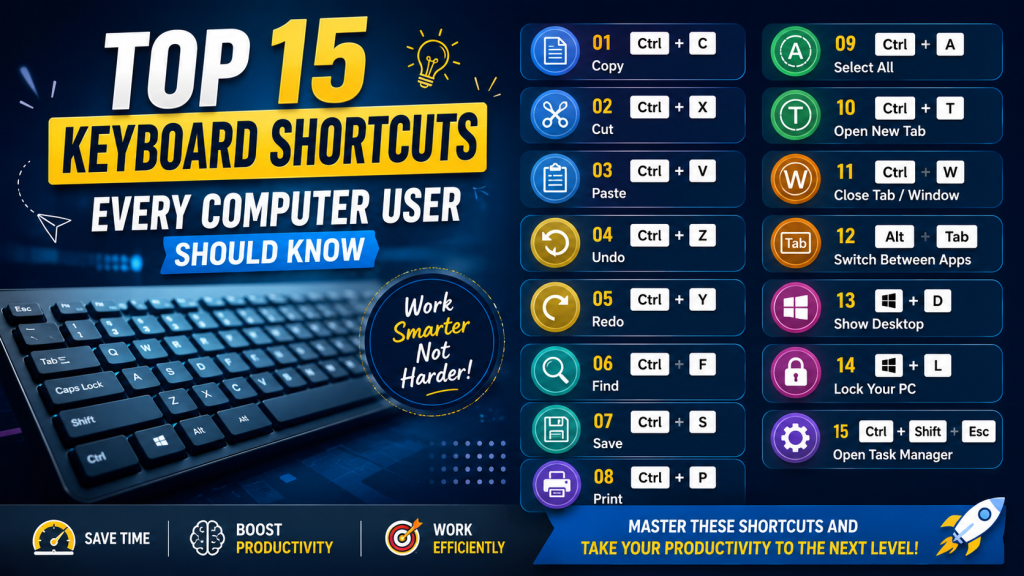
Many people know only a handful of shortcuts like Ctrl + C and Ctrl + V, but modern operating systems and applications offer dozens of useful shortcuts that make everyday tasks easier. From managing files and folders to browsing the internet and switching between applications, keyboard shortcuts help you work more efficiently and reduce repetitive movements.
In this guide, we’ll cover 15 essential keyboard shortcuts that every computer user should know. These shortcuts work on most Windows computers and are useful for beginners as well as experienced users.
1. Basic Editing Shortcuts
Editing text is one of the most common tasks performed on a computer. Whether you’re writing emails, creating documents, or chatting online, these shortcuts can save a lot of time.
Ctrl + C – Copy
Copies the selected text, image, or file without removing it from its original location.
Ctrl + X – Cut
Removes the selected content and places it on the clipboard so you can paste it elsewhere.
Ctrl + V – Paste
Pastes the copied or cut content into the desired location.
Ctrl + Z – Undo
Reverses your most recent action. Accidentally deleted a paragraph? Press Ctrl + Z to restore it.
Ctrl + Y – Redo
Reapplies the action you just undid using Ctrl + Z.
These five shortcuts are among the most frequently used in Windows, Microsoft Office, Google Docs, Photoshop, and many other applications. Mastering them is the first step toward becoming more productive.
2. File and Folder Management Shortcuts
Managing files efficiently is another essential computer skill. Instead of navigating menus with your mouse, these shortcuts let you organize your files quickly.
Ctrl + Shift + N – Create a New Folder
Instantly creates a new folder inside the current directory in File Explorer.
F2 – Rename a File or Folder
Select any file or folder and press F2 to rename it immediately without using the right-click menu.
Delete – Move to Recycle Bin
Deletes the selected file and sends it to the Recycle Bin, where it can be restored later if needed.
Shift + Delete – Permanently Delete
Removes the selected file permanently without sending it to the Recycle Bin. Use this shortcut carefully because recovering permanently deleted files can be difficult.
Ctrl + F – Search Files
Opens the search function in File Explorer, allowing you to quickly find files, folders, or documents stored on your computer.
Learning these shortcuts makes organizing documents, photos, and project files much faster and helps reduce unnecessary clicks.
3. Browser Navigation Shortcuts
Most people spend several hours every day using a web browser. Whether you’re researching information, shopping online, or working with cloud applications, browser shortcuts can greatly improve your browsing experience.
Ctrl + T – Open a New Tab
Creates a new browser tab instantly without clicking the plus (+) button.
Ctrl + W – Close Current Tab
Closes the currently active browser tab while leaving the rest of your tabs open.
Ctrl + Shift + T – Reopen Closed Tab
Accidentally closed an important tab? Press this shortcut to restore your most recently closed tab.
Ctrl + L – Select Address Bar
Highlights the browser’s address bar so you can immediately type a new website address or search query.
Ctrl + R – Refresh the Page
Reloads the current webpage to display the latest content.
These shortcuts work in most popular browsers, including Google Chrome, Microsoft Edge, Mozilla Firefox, and Brave Browser.
4. Windows System Shortcuts
Windows itself includes several built-in shortcuts that help you switch between applications, manage settings, and access important system tools quickly.
Alt + Tab – Switch Between Open Applications
Displays all currently open windows, allowing you to switch between them instantly.
Windows + L – Lock Your Computer
Locks your PC immediately to protect your privacy whenever you step away from your desk.
Windows + R – Open Run Dialog
Launches the Run command, allowing you to quickly open programs, folders, or Windows utilities.
Ctrl + Shift + Esc – Open Task Manager
Opens Task Manager directly, where you can monitor system performance or close applications that have stopped responding.
Windows + I – Open Settings
Provides instant access to Windows Settings, where you can manage updates, devices, network connections, personalization, and more.
These shortcuts are especially useful for office workers, students, and professionals who frequently multitask throughout the day.
5. Productivity Tips Using Keyboard Shortcuts
Knowing shortcuts is valuable, but using them consistently is what truly improves productivity. Many experienced computer users perform hundreds of keyboard shortcuts every day without even thinking about them.
A good approach is to start by learning five shortcuts that you use most often. Practice them until they become a habit. Once you’re comfortable, gradually add more shortcuts to your daily routine.
You can also place a small list of frequently used shortcuts near your workspace or save it as your desktop wallpaper until you memorize them.
For professionals who spend several hours working on computers, keyboard shortcuts help reduce mouse movement, improve typing speed, and make multitasking much smoother. Students can complete assignments faster, office employees can process documents more efficiently, and content creators can edit files with greater speed.
Over time, even saving a few seconds on repetitive actions can result in significant time savings. More importantly, using shortcuts creates a smoother workflow, allowing you to focus on your work instead of navigating menus.
Conclusion
Keyboard shortcuts may seem like small tricks, but they have a big impact on daily computer use. Whether you’re a student, office worker, freelancer, or business owner, these 15 shortcuts can help you work faster, stay organized, and become more productive.
Start by practicing a few shortcuts every day instead of trying to memorize them all at once. Within a few weeks, using shortcuts will become second nature, and you’ll notice that many routine computer tasks take much less time than before.
The more keyboard shortcuts you learn, the more confident and efficient you’ll become when using your computer. Small improvements in daily habits often lead to significant gains in productivity over time.