
10 Common Computer Problems and How to Fix Them at Home
Computers have become an essential part of our daily lives, whether for work, education, entertainment, or communication. However, like any electronic device, computers can develop problems over time. A slow system, internet issues, overheating, or startup failures can interrupt your work and cause frustration. The good news is that many common computer problems can be fixed at home without needing professional technical support.
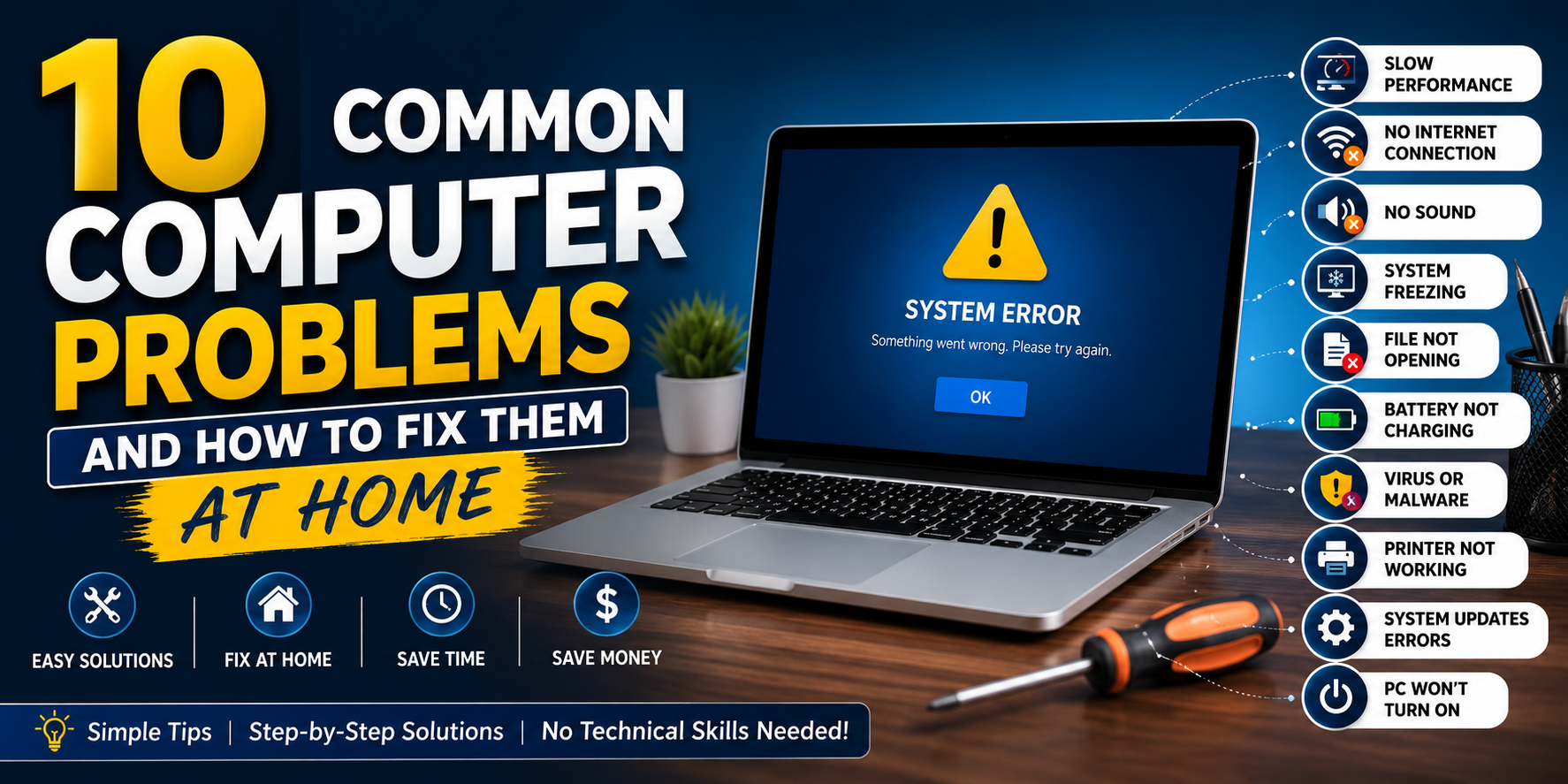
Understanding the basic causes behind these issues can save both time and money. In this guide, we’ll explore some of the most common computer problems, explain why they occur, and provide practical solutions that anyone can follow. Whether you’re using a desktop or a laptop, these troubleshooting tips will help keep your computer running smoothly.
Computer Running Slow
One of the most common complaints among computer users is that their computer becomes slower over time. Programs take longer to open, files load slowly, and even simple tasks may feel sluggish. Fortunately, this problem is often caused by software issues rather than hardware failure.
Too many startup programs are a major reason for slow performance. Every time your computer starts, several applications may automatically launch in the background. These programs consume memory and processing power, making your system take longer to boot and respond. Disabling unnecessary startup applications can significantly improve speed.
Another common cause is low storage space. When your hard drive or SSD is nearly full, Windows has less room to manage temporary files and virtual memory. Regularly deleting unnecessary files, clearing the Recycle Bin, and uninstalling unused software can improve system performance.
Keeping Windows and your drivers updated also helps maintain speed and stability. Software updates often include performance improvements and bug fixes. Running a trusted antivirus scan is equally important because malware and unwanted programs can secretly consume system resources.
Regular maintenance, such as restarting your computer, cleaning temporary files, and avoiding unnecessary software installations, can keep your computer performing efficiently for years.
2. Computer Won’t Turn On
Few computer problems are more stressful than pressing the power button and seeing nothing happen. While it may seem like a serious hardware failure, the issue is often caused by something simple.
Start by checking the power supply. For desktop computers, make sure the power cable is securely connected and that the power outlet is functioning correctly. If you’re using a laptop, verify that the charger is properly connected and that the charging indicator light is on.
Sometimes the battery may be completely drained. Leave the laptop connected to the charger for at least 20 to 30 minutes before trying again. If possible, remove the battery (for removable battery models) and attempt to power on using only the charger.
External devices can also prevent startup. Disconnect USB drives, printers, external hard disks, and other accessories before turning the computer on again. Occasionally, faulty peripherals interfere with the boot process.
If the computer powers on but the screen remains black, check the monitor connections or try connecting to another display. For laptops, increasing the screen brightness or using an external monitor can help identify whether the display is the problem.
If none of these basic troubleshooting steps work, the issue could involve the motherboard, RAM, or power supply, which may require professional repair.
3. Internet Connection Problems
A stable internet connection is essential for work, online learning, video calls, and entertainment. When your computer suddenly loses internet access, the problem isn’t always with your internet provider. Many connectivity issues can be solved within a few minutes.
The first step is restarting both your modem and Wi-Fi router. This simple action refreshes the network connection and resolves many temporary problems. After restarting the router, reboot your computer and reconnect to the network.
If you’re using Wi-Fi, check whether other devices are connected successfully. If every device has lost internet access, the issue is likely with the router or internet service provider. However, if only your computer is affected, the problem may lie within your device.
Updating network drivers can solve compatibility issues, especially after Windows updates. You can also use the built-in Windows Network Troubleshooter to automatically detect and fix common problems.
Sometimes antivirus software or firewall settings may accidentally block network access. Temporarily disabling them for testing purposes can help identify the cause. Be sure to enable security software again after troubleshooting.
Using an Ethernet cable instead of Wi-Fi can also help determine whether the issue is related to wireless connectivity or the internet connection itself.
4. Blue Screen of Death (BSOD)
The Blue Screen of Death, commonly known as BSOD, is one of the most feared Windows errors. It occurs when the operating system encounters a critical issue that prevents it from running safely. Although it appears alarming, the underlying cause can often be identified and corrected.
One of the most common reasons for BSOD errors is outdated or incompatible drivers. Graphics card drivers, storage drivers, and other hardware drivers should always be kept up to date through the manufacturer’s website or Windows Update.
Faulty RAM is another frequent cause. Windows includes a built-in Memory Diagnostic Tool that can check for memory-related problems. If errors are detected, replacing the faulty RAM module may resolve the issue.
Corrupted system files can also trigger blue screen errors. Running the System File Checker (SFC) and DISM commands through Command Prompt helps repair damaged Windows files.
Overheating, hardware failures, and unstable overclocking settings may also result in BSOD errors. Keeping your computer cool and avoiding unsupported hardware modifications reduces the risk of crashes.
If the blue screen started appearing after installing new software or hardware, uninstalling the recent changes may solve the problem.
5. Overheating and Loud Fan Noise
Overheating is a common issue that affects both desktops and laptops. When internal temperatures rise too high, the computer automatically increases fan speed to cool the components. As a result, users may notice loud fan noise, reduced performance, or unexpected shutdowns.
Dust accumulation is one of the primary causes of overheating. Dust blocks air vents and prevents proper airflow inside the computer. Cleaning the air vents and cooling fans every few months helps maintain proper cooling performance.
Using a laptop on soft surfaces like beds or pillows can block ventilation openings. Always place your laptop on a hard, flat surface to allow proper airflow underneath the device.
Running multiple heavy applications simultaneously can push the CPU and GPU to their limits. Closing unnecessary background programs reduces system load and lowers temperatures.
Replacing old thermal paste on the processor is another effective solution for older computers, although this should only be done by someone with technical knowledge.
Laptop cooling pads and additional desktop case fans can further improve cooling performance during gaming, video editing, or other demanding tasks.
Regular cleaning, proper ventilation, and routine maintenance will not only reduce fan noise but also extend the lifespan of your computer’s internal components.
Conclusion
Computer problems are a normal part of using technology, but they don’t always require expensive repairs or technical expertise. Many issues, including slow performance, startup failures, internet connectivity problems, blue screen errors, and overheating, can be diagnosed and fixed with simple troubleshooting steps at home.
Regular maintenance is the key to keeping your computer healthy. Updating Windows, installing the latest drivers, cleaning unnecessary files, protecting your system from malware, and ensuring proper airflow can prevent many common problems before they become serious.
By understanding these basic troubleshooting techniques, you can save time, reduce repair costs, and enjoy a faster, more reliable computing experience. If a problem continues despite following these solutions, consulting a professional technician is the safest next step.