
How to Speed Up a Slow Windows PC Without Upgrading Hardware
Has your Windows computer become frustratingly slow? Does it take several minutes to start, open applications, or respond to simple tasks? Many people assume that the only solution is to buy a new computer or upgrade the hardware. Fortunately, that’s not always necessary.
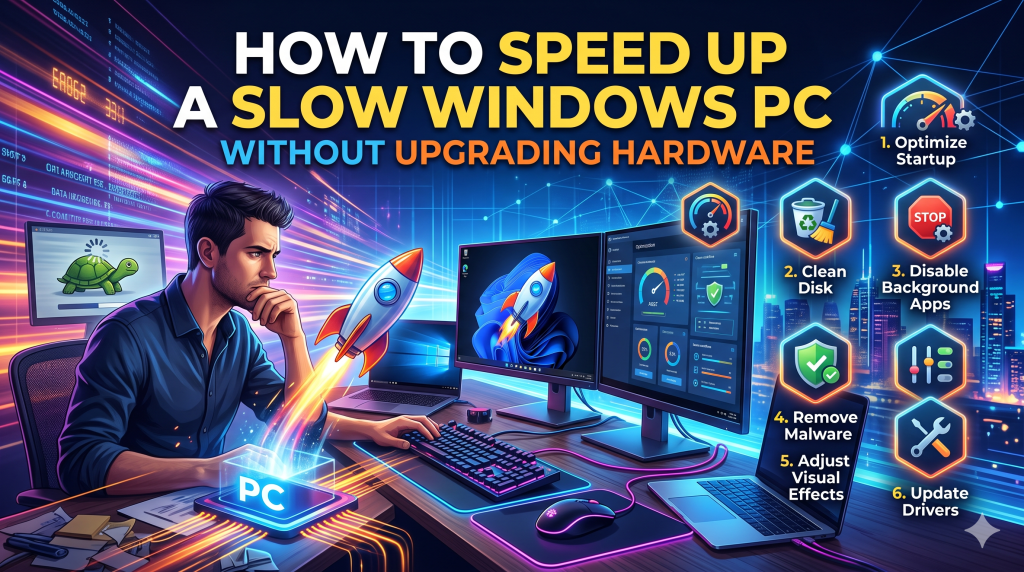
Over time, Windows PCs naturally slow down because of unnecessary startup programs, temporary files, outdated software, malware, and incorrect system settings. The good news is that you can significantly improve your computer’s performance without spending any money. By following a few simple maintenance steps, you can make your PC feel much faster and more responsive.
In this guide, we’ll explore five proven methods to speed up your Windows PC without upgrading your hardware.
1. Disable Unnecessary Startup Programs
One of the biggest reasons a computer takes a long time to boot is that too many applications start automatically when Windows loads. Every program running in the background consumes memory (RAM), processor power, and system resources, making your PC slower even before you begin using it.
Many applications such as Spotify, Microsoft Teams, Discord, Adobe Creative Cloud, Zoom, and OneDrive automatically add themselves to the startup list. While some of these programs are useful, they don’t all need to launch every time you turn on your computer.
To manage startup programs:
- Press Ctrl + Shift + Esc to open Task Manager.
- Click the Startup Apps tab.
- Review the list of applications.
- Disable programs you don’t need immediately after startup.
Be careful not to disable important system processes or antivirus software. Focus only on third-party applications that you rarely use.
Reducing startup applications can dramatically decrease boot time and free up valuable system resources, allowing your computer to perform more efficiently throughout the day.
2. Free Up Disk Space
A nearly full hard drive can significantly reduce your computer’s performance. Windows requires free storage space for temporary files, virtual memory, software updates, and other background operations. When your drive becomes cluttered, your PC may start responding slowly.
Fortunately, cleaning up your storage is easy.
Begin by removing files you no longer need. Delete duplicate photos, videos, downloads, and documents that are taking up unnecessary space. Uninstall programs you haven’t used in months, as they often occupy several gigabytes of storage.
Windows also includes a built-in Disk Cleanup tool that helps remove temporary files, recycle bin contents, cached files, and previous update files.
Another useful feature is Storage Sense, which automatically deletes temporary files and manages storage in the background.
To free up space:
- Empty the Recycle Bin regularly.
- Delete unnecessary downloads.
- Remove temporary files.
- Uninstall unused software.
- Move large files to cloud storage or an external drive.
Experts generally recommend keeping at least 20% of your storage drive free for optimal Windows performance.
3. Update Windows and Drivers
Many users ignore Windows updates because they think updates only add new features. In reality, updates often include performance improvements, security patches, bug fixes, and driver optimizations that help your computer run more smoothly.
Similarly, outdated hardware drivers can cause compatibility issues, slow performance, crashes, and hardware malfunctions.
Windows automatically checks for updates, but it’s still a good idea to manually verify that everything is up to date.
To check for updates:
- Open Settings.
- Go to Windows Update.
- Click Check for Updates.
- Install available updates.
- Restart your computer if required.
Driver updates are equally important. Updated graphics, chipset, network, and audio drivers often improve overall system stability and speed.
If you own a laptop, you can also visit the manufacturer’s website to download the latest drivers specifically designed for your model.
Keeping Windows and drivers updated ensures that your PC performs efficiently while remaining secure against newly discovered vulnerabilities.
4. Scan for Malware and Viruses
Sometimes the reason your computer feels slow isn’t Windows itself—it’s malicious software running silently in the background.
Viruses, spyware, ransomware, browser hijackers, and cryptocurrency miners consume CPU power, memory, and internet bandwidth. Some malware constantly runs hidden processes that dramatically reduce your computer’s speed.
Windows includes Microsoft Defender, which provides excellent built-in protection for most users.
To perform a security scan:
- Open Windows Security.
- Select Virus & Threat Protection.
- Choose Quick Scan or Full Scan.
- Remove any detected threats.
You should also avoid downloading software from unknown websites, clicking suspicious email attachments, or installing cracked applications, as these are common sources of malware.
Regular security scans not only protect your personal information but also help restore your computer’s performance by eliminating hidden background threats.
5. Optimize Windows Performance Settings
Windows includes several visual effects and animations that make the operating system look attractive. However, these effects consume system resources, especially on older computers with limited RAM or slower processors.
Fortunately, Windows allows you to adjust these settings for better performance.
You can optimize your PC by:
- Disabling unnecessary animations.
- Turning off transparency effects.
- Choosing the “Adjust for Best Performance” option.
- Selecting the High Performance power plan (if available).
- Restarting your computer regularly.
Another helpful optimization is limiting the number of browser tabs and background applications running simultaneously. Even modern computers can slow down when dozens of applications are competing for memory.
If your computer uses a traditional hard disk (HDD), defragmenting the drive occasionally can also improve performance. However, if your PC has a Solid State Drive (SSD), do not manually defragment it, as Windows automatically manages SSD optimization.
Making these small adjustments can noticeably improve system responsiveness without changing any hardware components.
Conclusion
A slow Windows computer doesn’t always mean it’s time to buy a new one. In many cases, poor performance is caused by software issues rather than aging hardware. By disabling unnecessary startup programs, freeing up storage space, keeping Windows updated, scanning for malware, and optimizing system settings, you can restore much of your PC’s original speed.
Regular maintenance is the key to keeping your computer running efficiently. Spending just a few minutes each month performing these simple tasks can extend the life of your Windows PC, improve productivity, and save you the cost of expensive hardware upgrades.
Before investing in a new computer, try these proven optimization techniques—you may be surprised by how much faster your existing PC becomes.